
Supplemental expenses typically refer to additional employee pays not covered by a primary pay source. Examples of supplemental expenses might include “Coach Extra Duty Pay”; “After-School Care Stipend”; “Executive Extra Pay”; or “Substitute Teacher 8 Hours”. While Personnel Expenses calculate salary and benefits assigned to an employee, and non-personnel expenses don’t calculate any benefits or assign to an individual employee, Supplemental Expenses are for a flat amount that can be optionally associated with an Employee and may have a Benefits Package attached, where applicable.
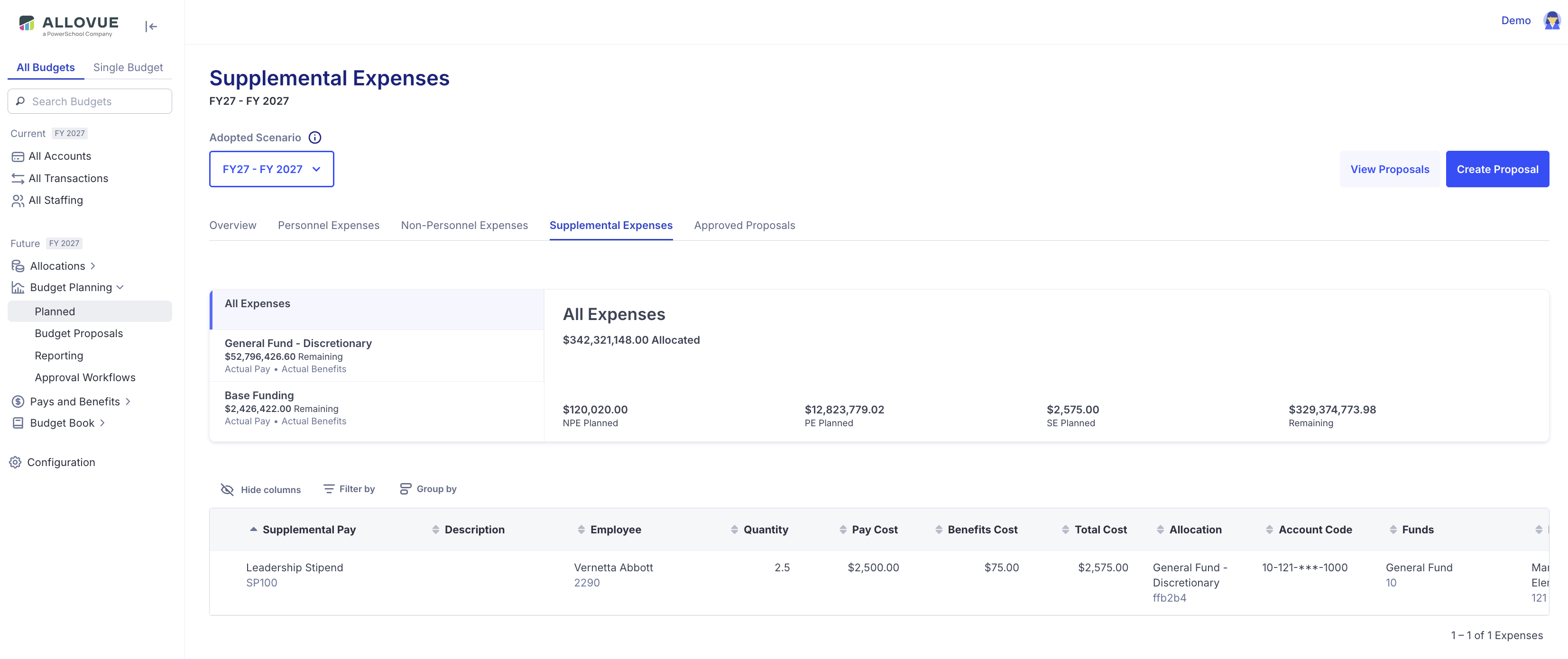
How to Access Future Supplemental Expenses:
For Administrators, planned supplemental expenses can be reviewed across the district using the All Budgets tab. Follow the steps below to access Supplemental Expenses in your account.
-
From the Future tab, select Budget Planning.
-
From Budget Planning, select Planned.
-
From the Planned view, select the Supplemental Expenses tab.
A table of supplemental expenses will display for All Budgets in your account. The same table can be accessed for single budget users, and the table will be scoped to the budget selected. To access supplemental expenses for a single budget, follow the steps below:
-
If you are an admin user or have access to multiple budgets, use the search bar to find the desired budget.
-
From the selected budget, navigate to the future tab.
-
From the future tab, select supplemental expenses.
Users can select to hide columns or use the filter by in the table to filter the results of the table. The filter by option for supplemental expenses allows the following options for filters:
Filter By Supplemental Expenses Table
|
Field |
Operator |
Value |
|---|---|---|
|
Funds |
|
alphanumeric |
|
Locations |
|
alphanumeric |
|
Functions |
|
alphanumeric |
|
Supplemental Pay Code |
|
alphanumeric |
|
Description |
|
alphanumeric |
|
Employee |
|
alphanumeric |
|
Strategies |
|
characters |
The table of supplemental expenses found from the future tab will include all approved supplemental expenses for the selected budget(s). To plan for additional supplemental expenses, please follow the proposal workflow.
Create a New Expense Proposal
Users can plan for future supplemental expenses via Allovue’s proposal mechanism. Similar to other proposal types, Supplemental Expenses will need to be approved based on the approval workflow that the district has configured. To submit a supplemental expense proposal, follow the steps below:
-
From the Future menu, select Budget Proposals.
-
Select Create Proposal.
-
Enter the proposal title (required).
-
Select the Budget from the dropdown menu.
-
Enter the proposal justification.
-
Select Create Proposal.
If you have access to All Budgets, you will need to select Expenses Proposal as the proposal type.
Once the proposal is created, you will be brought to the proposal page. From the proposal page, you can plan for expenses; including Supplemental Expenses. To continue planning for supplemental expenses, select Supplemental Expense.
From the Supplemental Expense page inside your proposal, you have the ability to either add a single expense or upload multiple supplemental expenses.
Create a Single Supplemental Expense:
-
From the Supplemental Expense page inside your proposal, select Create Expense.
-
Select the Supplemental Pay from the list.
-
Enter a Description for the expense.
-
Select the Employee from the list.
-
Enter the Quantity.
-
Select the Funding Allocation from the drop down list.
-
Select Funds, Locations, and Functions.
-
Add a Strategy
Upload Supplemental Expenses - Explanation of Fields
|
Field Name |
Description |
Format |
Example |
|---|---|---|---|
|
Expense Code |
Include code of any existing Supplemental Expense you'd like to update, if applicable. If left blank, a new code will automatically be created for this expense. |
Alphanumeric |
c20sa17 |
|
Supplemental Pay Code Required |
The code of the Supplemental Pay for this expense |
Alphanumeric |
pl20a20 |
|
Quantity Required |
The number of times the selected pay type should be applied. |
Decimal |
1.25 |
|
Employee Code |
ID of the employee associated with this assignment. Leave blank for Vacancies. |
Characters |
3584 |
|
Allocation Code |
The code for the Allocation from which this expense should be funded. You may leave it blank if you are not assigning the expense to an Allocation yet. |
Alphanumeric |
m20da20 |
|
Organization Code |
The code for the Organization containing the Allocation where this expense should be funded. If the Allocation Code is included, the Organization code MUST also be included. If the Allocation Code is blank, the Organization code MUST also be blank. |
Alphanumeric |
abc123 |
|
Description |
Optional description of this expense |
Characters |
After-school care weekly supplement |
|
Funds Required |
Funds from your district's chart of accounts |
Alphanumeric |
10 |
|
Locations Required |
Locations from your district's chart of accounts |
Alphanumeric |
100 |
|
Functions Required |
Functions from your district's chart of accounts |
Alphanumeric |
1000 |
|
Strategy 1 |
Code associated with your unique strategy/priority combos. These can be found on the Config --> Strategy page. |
Alphanumeric |
xyz102 |
|
Percentage 1 |
Percentage associated with this strategy. Whole numbers only. |
Alphanumeric |
20 |
|
Strategy 2 |
Code associated with your unique strategy/priority combos. These can be found on the Config --> Strategy page. |
Alphanumeric |
xyz102 |
|
Percentage 2 |
Percentage associated with this strategy. Whole numbers only. |
Alphanumeric |
20 |
|
Strategy 3 |
Code associated with your unique strategy/priority combos. These can be found on the Config --> Strategy page. |
Alphanumeric |
xyz102 |
|
Percentage 3 |
Percentage associated with this strategy. Whole numbers only. |
Alphanumeric |
20 |
|
Strategy 4 |
Code associated with your unique strategy/priority combos. These can be found on the Config --> Strategy page. |
Alphanumeric |
xyz102 |
|
Percentage 4 |
Percentage associated with this strategy. Whole numbers only. |
Alphanumeric |
20 |
|
Strategy 5 |
Code associated with your unique strategy/priority combos. These can be found on the Config --> Strategy page. |
Alphanumeric |
xyz102 |
|
Percentage 5 |
Percentage associated with this strategy. Whole numbers only. |
Alphanumeric |
20 |
How to Create Supplemental Pays:
-
In Allovue, select Pays & Benefits
-
Select Supplemental Pays.
-
Select Upload Pays. Select an existing Pay & Benefit Proposal to house changes, or create a New Proposal.
-
Select Download CSV Template.
-
Modify the template.
-
Select Upload.
-
Map the fields as necessary.
-
Select Review and Confirm.
-
Select Confirm and Save.
-
Select Submit to route Proposal through Approval Workflow.